> ## Documentation Index
> Fetch the complete documentation index at: https://docs.orcapods.ai/llms.txt
> Use this file to discover all available pages before exploring further.
# Dashboard overview
> Sign in, pick an active organization, navigate the sidebar, and use the command palette, topbar, and role-gated surfaces.
The Orca dashboard is the control surface for building, running, and observing your AI agents. Sign up at [orcapods.ai](https://www.orcapods.ai) and open the app at [app.orcapods.ai](https://app.orcapods.ai). This page is the map of the product — every section links to its own guide.
## Signing in and picking an organization
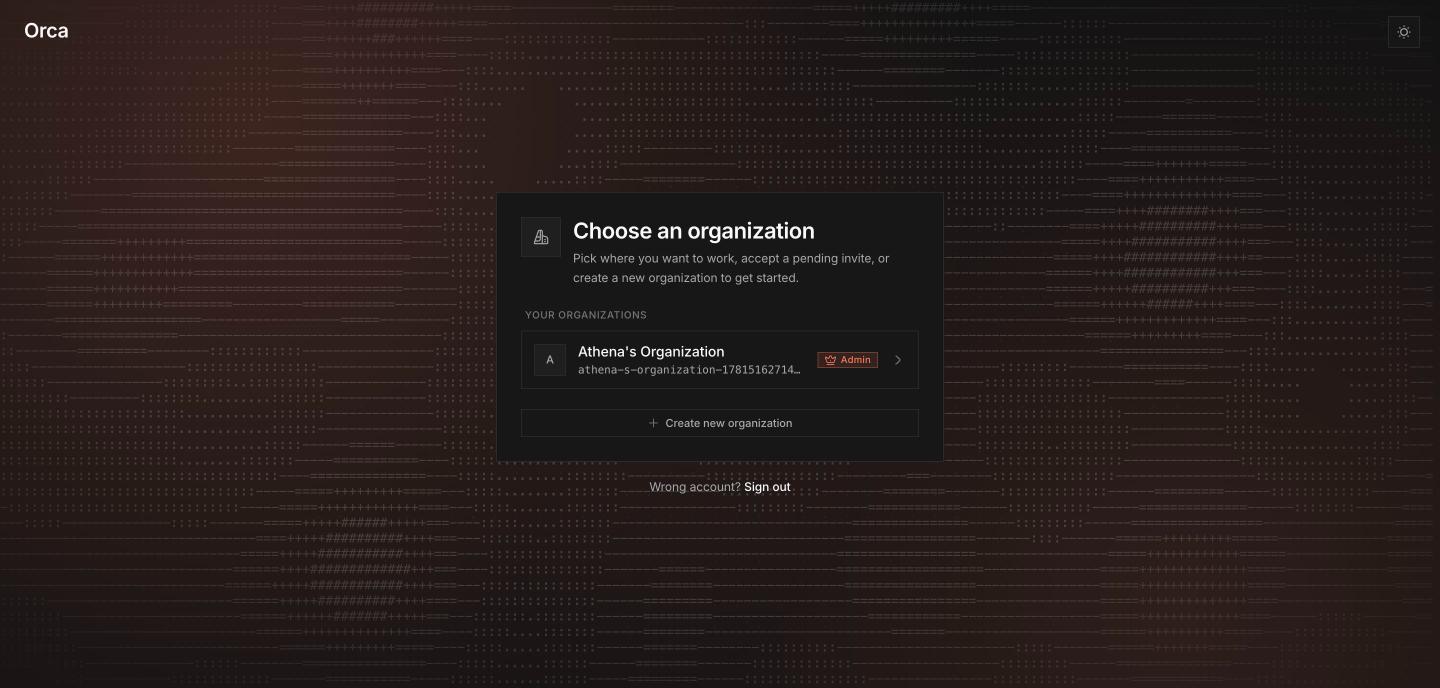
Everything in Orca is scoped to an **organization**. After you sign in you must have an **active organization** selected before the rest of the app unlocks.
Authenticate at [app.orcapods.ai](https://app.orcapods.ai).
On the choose-organization screen you can **create** a new org, **join** one you've been invited to, or **switch** between orgs you already belong to.
Once an org is active, `/` redirects to `/agents` — your catalog of agent profiles.
You can switch the active organization at any time from the **user chip** menu (bottom of the sidebar) or the choose-organization screen.
 ## The sidebar
The left sidebar groups every screen into sections. It collapses to a compact rail, shows the brand logo, and includes a light/dark theme toggle.
### Build
Run an agent against a prompt and inspect every streamed step.
Create, import, edit, publish, and manage agent profiles.
Group agents into a shared workspace with role-aware access.
Import and manage Agent Skills that run in the sandbox.
Browse memories agents write at runtime.
### Run
Inspect live and past sessions, their runs, streams, and timelines.
Inspect, execute, and cancel multi-agent DAG workflows.
### Resources
Register and manage Model Context Protocol servers.
Browse files in your workspace storage.
### Observe
Track token, run, and resource usage across the org.
Inspect live runners, sidecar slots, observed worker instances, and where
sessions are running.
### Settings
Settings is organized into three groups:
| Group | Items |
| ------------------ | ---------------------------------------- |
| **Workspace** | Organization, Members, Manage |
| **Infrastructure** | Environments, Storage, Secrets, API Keys |
| **Admin** | Audit |
The sidebar footer holds shortcuts to **Quickstart**, **Documentation** (opens externally), **Settings**, and a **live status indicator** that reflects platform health.
## Command palette
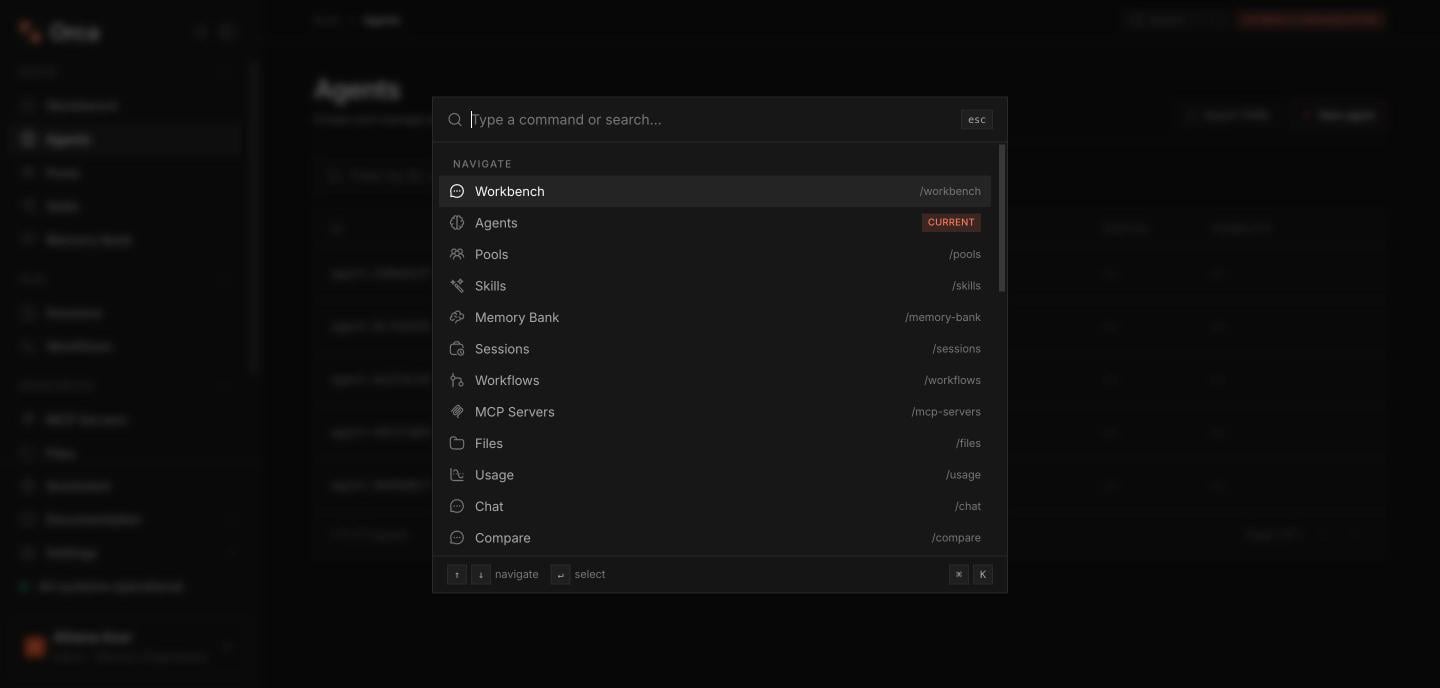
Press **⌘K** (macOS) or **Ctrl+K** (Windows/Linux) anywhere to open the command palette. It groups actions into:
* **Navigate** — jump to any screen.
* **Quick actions** — toggle theme, toggle sidebar, reload, go back.
* **Create** — new agent, session, workflow, skill, or MCP server.
* **Admin** — open the Audit log.
## The sidebar
The left sidebar groups every screen into sections. It collapses to a compact rail, shows the brand logo, and includes a light/dark theme toggle.
### Build
Run an agent against a prompt and inspect every streamed step.
Create, import, edit, publish, and manage agent profiles.
Group agents into a shared workspace with role-aware access.
Import and manage Agent Skills that run in the sandbox.
Browse memories agents write at runtime.
### Run
Inspect live and past sessions, their runs, streams, and timelines.
Inspect, execute, and cancel multi-agent DAG workflows.
### Resources
Register and manage Model Context Protocol servers.
Browse files in your workspace storage.
### Observe
Track token, run, and resource usage across the org.
Inspect live runners, sidecar slots, observed worker instances, and where
sessions are running.
### Settings
Settings is organized into three groups:
| Group | Items |
| ------------------ | ---------------------------------------- |
| **Workspace** | Organization, Members, Manage |
| **Infrastructure** | Environments, Storage, Secrets, API Keys |
| **Admin** | Audit |
The sidebar footer holds shortcuts to **Quickstart**, **Documentation** (opens externally), **Settings**, and a **live status indicator** that reflects platform health.
## Command palette
Press **⌘K** (macOS) or **Ctrl+K** (Windows/Linux) anywhere to open the command palette. It groups actions into:
* **Navigate** — jump to any screen.
* **Quick actions** — toggle theme, toggle sidebar, reload, go back.
* **Create** — new agent, session, workflow, skill, or MCP server.
* **Admin** — open the Audit log.
 ## Topbar
The topbar shows a **breadcrumb** of where you are, a **Search (⌘K)** button that opens the command palette, and a read-only **active-organization pill**.
## User chip
At the bottom of the sidebar, the **user chip** shows your avatar, name, and `role · org`. Its menu links to **Account settings**, **Organization**, **Members**, and **Sign out**.
## Roles and gating
Some actions are restricted to organization **admins**:
**Secrets** is admin-only — both the page and its nav entry are hidden for members. Publishing agents, deleting agents, renaming/changing-logo/deleting the org, and inviting or removing members are also admin-only.
## Related
Start running agents.
Build your first agent profile.
Create an agent or pool from a template.
## Topbar
The topbar shows a **breadcrumb** of where you are, a **Search (⌘K)** button that opens the command palette, and a read-only **active-organization pill**.
## User chip
At the bottom of the sidebar, the **user chip** shows your avatar, name, and `role · org`. Its menu links to **Account settings**, **Organization**, **Members**, and **Sign out**.
## Roles and gating
Some actions are restricted to organization **admins**:
**Secrets** is admin-only — both the page and its nav entry are hidden for members. Publishing agents, deleting agents, renaming/changing-logo/deleting the org, and inviting or removing members are also admin-only.
## Related
Start running agents.
Build your first agent profile.
Create an agent or pool from a template.