> ## Documentation Index
> Fetch the complete documentation index at: https://docs.orcapods.ai/llms.txt
> Use this file to discover all available pages before exploring further.
# Files
> Browse the virtual filesystem and manage storage mounts.
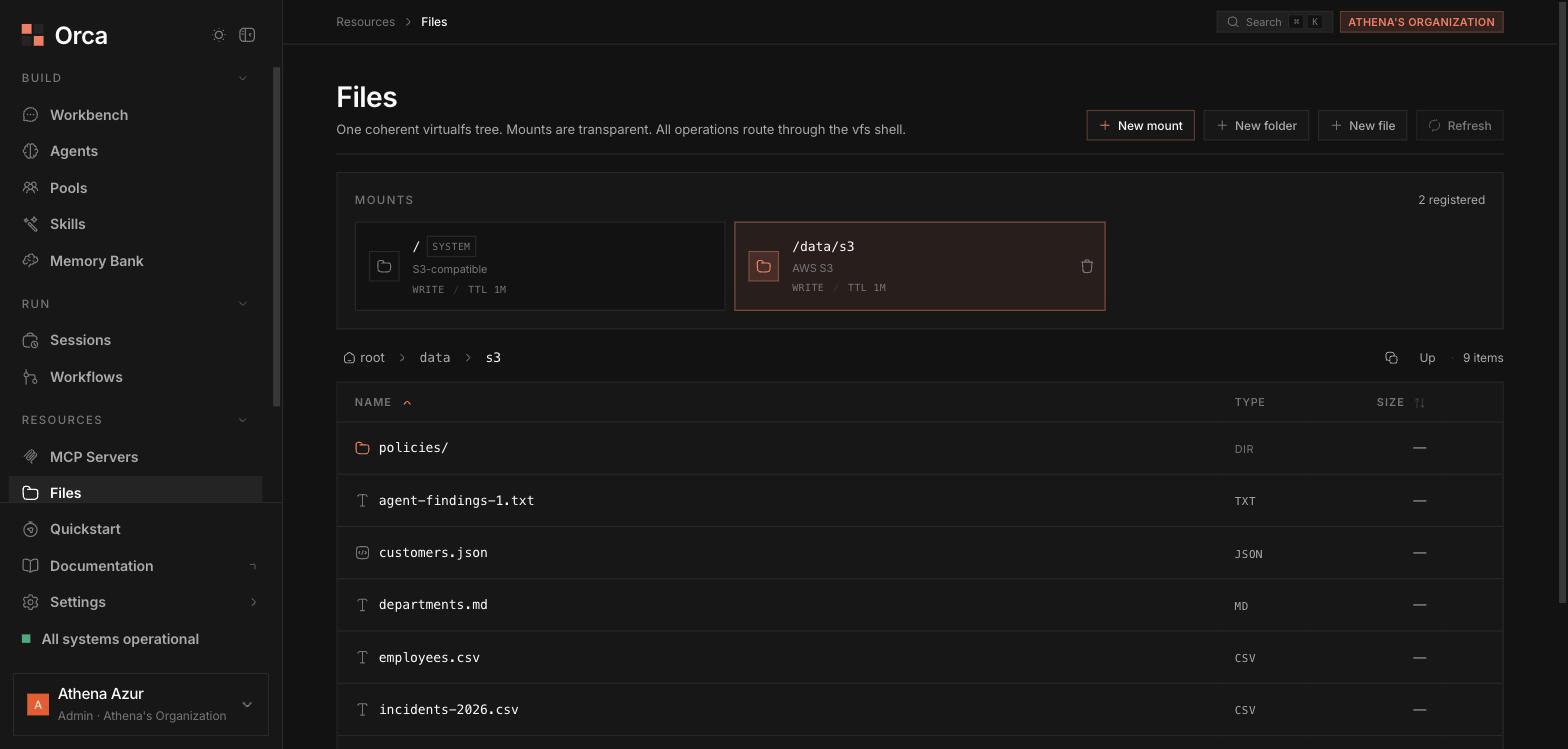
The **Files** screen presents one coherent **virtual filesystem** (VFS) — a single tree that transparently stitches together everything your agents can read and write: agent workspaces, pools, the knowledge base, data, and any external S3 buckets you mount. For the model behind it, see the [virtual filesystem overview](/virtualfs/overview) and [Storage](/concepts/storage).
 ## Browsing
Navigate with the **breadcrumb** trail at the top and the **sortable table** of the current folder. Mounts appear inline in the tree — you move through them the same way you move through native folders.
A **Mounts glance card** summarizes each mount at a glance: **driver**, **mode**, **TTL**, and **status**.
## Actions
The toolbar exposes the common operations:
| Action | What it does |
| -------------- | ------------------------------------------- |
| **New folder** | Create an empty folder at the current path. |
| **New file** | Create a text file inline. |
| **New mount** | Launch the mount wizard (below). |
| **Refresh** | Re-read the current folder. |
You can also **delete** files and folders, and **delete mounts**.
There is deliberately **no in-app file upload**: put objects into your own
bucket with your normal S3/R2 tooling (console, CLI, SDK) and mount it —
they appear in this tree automatically, and agents can read them through
the same mount.
## Adding a mount
**New mount** opens an **R2 / S3-compatible wizard** to attach an external bucket into the tree.
Give the mount a **name** and the **path prefix** where it should appear in the VFS.
Choose the **mode** and an optional **TTL**.
Provide the **bucket**, **endpoint**, and **key prefix**.
Pick the **access** and **secret** credentials from the [secret vault](/concepts/secrets) rather than pasting them inline.
## Previewing files
Click a file to open the **preview slide-in sheet**. It renders the contents and offers **copy-path** and **copy-contents** buttons.
## Related
How mounts stitch into one tree.
Buckets, drivers, and artefacts.
Credentials for external mounts.
## Browsing
Navigate with the **breadcrumb** trail at the top and the **sortable table** of the current folder. Mounts appear inline in the tree — you move through them the same way you move through native folders.
A **Mounts glance card** summarizes each mount at a glance: **driver**, **mode**, **TTL**, and **status**.
## Actions
The toolbar exposes the common operations:
| Action | What it does |
| -------------- | ------------------------------------------- |
| **New folder** | Create an empty folder at the current path. |
| **New file** | Create a text file inline. |
| **New mount** | Launch the mount wizard (below). |
| **Refresh** | Re-read the current folder. |
You can also **delete** files and folders, and **delete mounts**.
There is deliberately **no in-app file upload**: put objects into your own
bucket with your normal S3/R2 tooling (console, CLI, SDK) and mount it —
they appear in this tree automatically, and agents can read them through
the same mount.
## Adding a mount
**New mount** opens an **R2 / S3-compatible wizard** to attach an external bucket into the tree.
Give the mount a **name** and the **path prefix** where it should appear in the VFS.
Choose the **mode** and an optional **TTL**.
Provide the **bucket**, **endpoint**, and **key prefix**.
Pick the **access** and **secret** credentials from the [secret vault](/concepts/secrets) rather than pasting them inline.
## Previewing files
Click a file to open the **preview slide-in sheet**. It renders the contents and offers **copy-path** and **copy-contents** buttons.
## Related
How mounts stitch into one tree.
Buckets, drivers, and artefacts.
Credentials for external mounts.